How to Build Your Own Tool
Follow these simple steps to build and publish a new application using AI.
Set Up Your Environment
To start building, you need to download the Sandbox repository to your computer.
- Ensure you have Git for Windows installed and that you have accepted your GitHub invitation to this private repository.
- Create a new folder on your Desktop named "Miebach Tools Sandbox".
- Open your terminal, navigate to that folder, and clone the repository:
git clone https://github.com/jorgelrm1/MTB-Sandbox.git - Note: Because this is a private repository, a browser window will pop up asking you to sign into GitHub. Please sign in!
- Before making any changes, always double-click
1_Start_Working.batinside the newly cloned folder. This ensures you have the latest updates from your colleagues.
Create Your Workspace
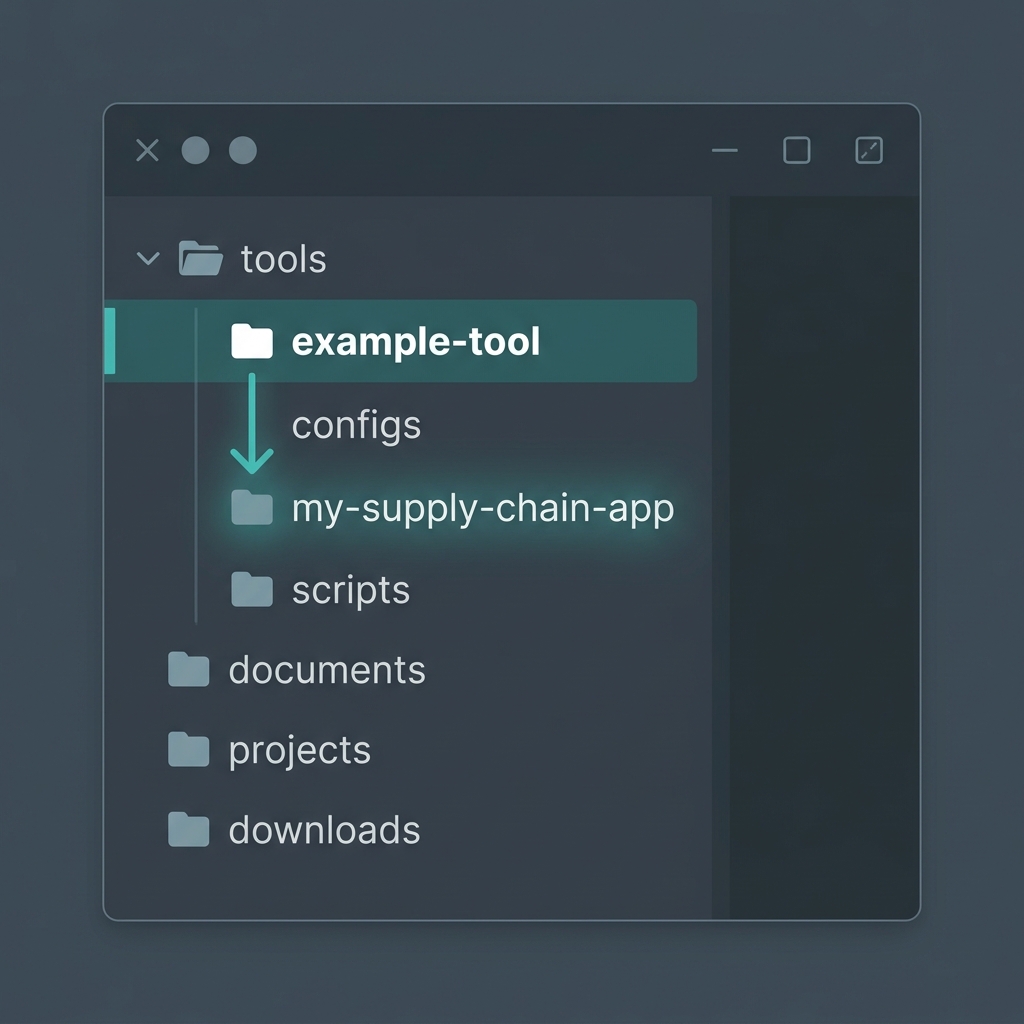
Navigate to the tools/ directory in your local folder.
Copy the example-tool folder and rename the copy to your new tool's name (e.g., my-supply-chain-app). This folder contains the official 5-section HTML template.
Prompt Your AI (Codex/Cursor)
To build your tool, you need an AI-enabled code editor. We recommend Codex / Cursor.
- Download and install the Codex / Cursor app.
- Open the app and select "Open a folder" (or "Create a new project with an existing folder").
- Select the
MTB-Sandboxfolder you just cloned on your Desktop.
Because the AI_DEVELOPMENT_GUIDE.md file is already in the root folder, the AI will automatically know all Miebach standards (including our strict open-source mapping policy).
Example Prompt:
"I need to build a Transport Carbon Emissions Calculator for our clients. The user should be able to type in the distance in kilometers and select a vehicle type (Truck, Train, Ship) from a dropdown. Once they click 'Calculate', I want to see a nice bar chart showing the total emissions, and a button to export the results to an Excel file. Please write the code to make this work inside my tool."
Frontend Only
If your tool is just HTML/JS, simply double-click your index.html to test it in Chrome!
Backend Logic
If you need server logic, drop a `.js` file in the api/ folder. Run npm start in the terminal to test it locally.
Publish to the Internet
Once you are happy with how your tool looks and functions locally, it's time to share it with the team.
Go to the main MTB-Sandbox folder and double-click 2_Publish_My_Tool.bat.
That's it! Google Cloud Run will automatically deploy your code, and within 60 seconds, your new tool card will be live on this Sandbox dashboard.